 Sleep Tiles
How to get Oura, WHOOP and Garmin sleep into Apple Health
Apple Health can hold sleep from almost any tracker, but each brand's app has to be told to send it. Here are the steps for Oura, WHOOP, Garmin, Withings and sleep apps, how to check it worked, and what to do when a night doesn't show up.
Why put your sleep in Apple Health
Apple Health is the shared store on your iPhone. When your tracker's app writes sleep there, every app you allow can read it, and your nights stay in one place even if you change trackers later. Apple Watch writes to Health on its own once sleep tracking is turned on. Rings, straps and other watches each need a switch turned on in their own app first.
The Oura, WHOOP and Withings steps were checked against each brand's help pages in October 2026. Garmin's menus vary between app versions, so its steps are more general. Apps move their menus around now and then, so if a step doesn't match, search the app's help for "Apple Health".
Oura Ring
- Open the Oura app and tap the menu (three lines) in the top-left corner.
- Tap Settings.
- Under Data sharing, tap Apple Health.
- Turn on Connect to Health, make sure Sleep is allowed, then tap Allow.
Oura sends sleep, including sleep stages, after the ring syncs with the Oura app. Gen3 and later rings, including Ring 4, need an active Oura membership for this.
WHOOP
- Update the WHOOP app, then open it.
- Tap More, then App Settings.
- Tap Integrations, then Apple Health, then Connect.
- Make sure Sleep is turned on (or tap Turn On All), then tap Allow.
WHOOP sends each night after the strap syncs, which can take a little while.
Garmin
- Open the Garmin Connect app on your iPhone (not on the watch).
- Open the app's menu and tap Settings.
- Find the Apple Health option.
- Follow the prompts to connect.
- Make sure Sleep is turned on (or tap Turn On All), then tap Allow.
Garmin sends each night to Health after the watch syncs with Garmin Connect, so open Garmin Connect in the morning if it's slow.
Withings
- Open the Withings app and tap Profile.
- Tap Settings (the gear), then Export health data to Apple Health.
- Allow Sleep (or tap Turn On All), then tap Allow.
Health only updates when the Withings app is opened, so open it after each night and pull down to refresh. Withings accounts created after October 13, 2026 need a Withings+ subscription to export to Apple Health.
Sleep apps
- Sleep apps such as AutoSleep, Sleep Cycle and Pillow ask for Health access, some during setup and some later (Sleep Cycle asks after your 15th night). Say Allow.
- If the app isn't listed in Health, turn on Apple Health in the app's own settings first. Then open the Health app, tap your profile picture, then Apps, and check Sleep is allowed.
- Tap the sleep app and turn on Sleep.
Check that it worked
- Open the Health app and tap Browse, then Sleep.
- If last night is there, any app with permission to read sleep can see it too.
- To see which apps can read or write your sleep, tap your profile picture in Health, then Apps.
Why last night is late or missing
Apple Watch writes to Health on its own once sleep tracking is turned on. Oura, WHOOP, Garmin and Withings don't: they write when their own app syncs, and no other app can make that happen. If a night hasn't turned up by mid-morning, open your tracker's app and let it sync. That fixes it most of the time.
If it still doesn't show, go back to the tracker app's Apple Health setting and check that Sleep is still allowed. Updates and new phones sometimes switch it off.
Wearing two trackers is fine. Health keeps both versions of the night, and apps that read from it choose one. In Sleep Tiles you pick a preferred source in Settings. If that source has nothing for a night, the app uses whichever one recorded the most sleep.
In Sleep Tiles
Once it's in Apple Health, it's in your grid
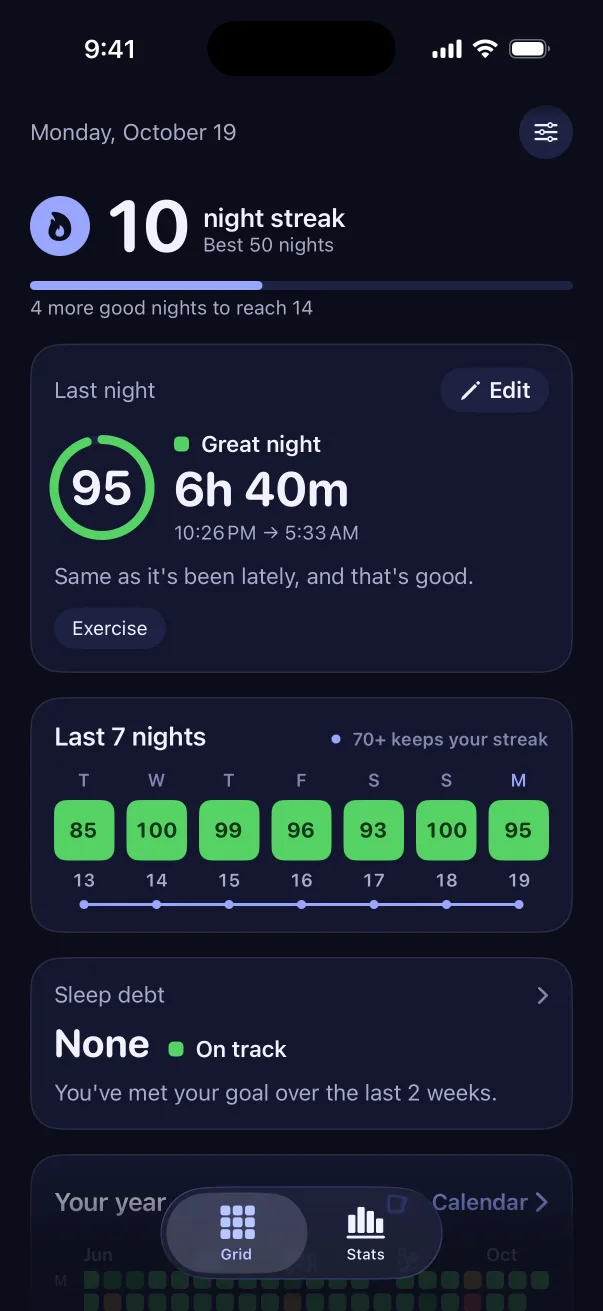
Sleep Tiles reads sleep from Apple Health and doesn't record any itself. When your Oura, WHOOP, Garmin or Withings night lands in Health, Sleep Tiles scores it out of 100. It joins your year as one colored tile, next to the nights from any tracker you used before.
- The same score for every tracker, so switching devices doesn't reset anything
- Old nights keep the score they were given, whatever you wear next
- A preferred source for nights when two trackers both recorded
- No tracker that night? Log it by hand in a few taps
Already have months of nights in Health?
Then you don't start from zero. The first time you open Sleep Tiles it reads about the last year of nights already in Apple Health, so your grid fills in with the history your tracker has saved. More on how each night is scored is in how a sleep score is calculated.
